Put photos into words
Describe a scene, product or reference photo. Ask a specific question and choose your output language.
Open tool: Put photos into wordsYour images. One tap away.
Turn a photo, product image or screenshot into useful words on your phone. Add DescribeImage AI to your home screen and return straight to the tools you already use.
Uses your existing account · AI tools require an internet connection
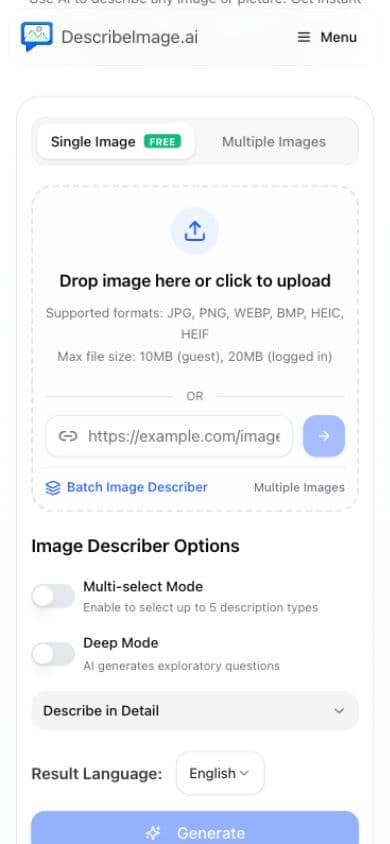
The same DescribeImage.ai tools, with a home screen shortcut and a standalone window on supported devices.
Describe a scene, product or reference photo. Ask a specific question and choose your output language.
Open tool: Put photos into wordsExtract text from a photo or screenshot so you can copy it and use it elsewhere.
Open tool: Get text out of screenshotsTranslate text in an image when working with signs, documents or product information.
Open tool: Read images in another languageUse a reference image to create a prompt for your next image project.
Open tool: Turn inspiration into a prompt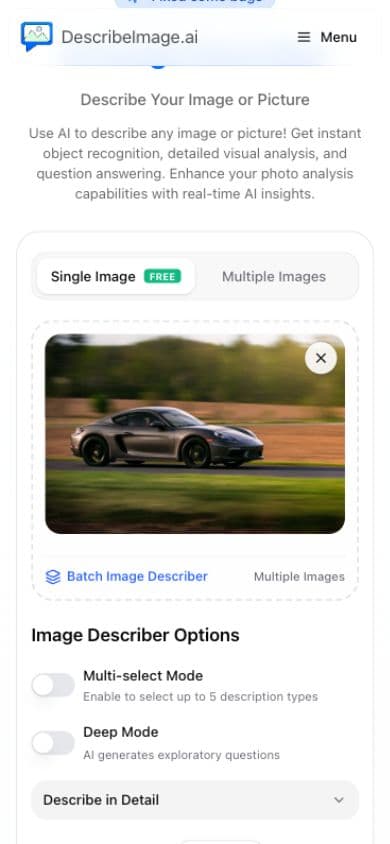
Choose a photo from your phone or paste an image link.
Choose a description style, add a question and select a language.
Generate online, then copy or download your result.
No app store download is needed. The steps depend on your browser and phone.

Scan this code with your phone camera to open this page in your language. Then follow the instructions below.
https://describeimage.ai/app
Open this page in Safari. If you are in another app, use its menu to open the link in Safari.
Tap Share in Safari. If needed, open the More menu first, then choose Add to Home Screen.
Keep Open as Web App enabled if shown, then tap Add. Open DescribeImage from the new home screen icon.
Open this page in Chrome or another browser that supports web app installation.
Tap Add to Home Screen on this page. When your browser offers an installation prompt, confirm Install.
If no prompt appears, open the browser menu and choose Install app or Add to Home screen, if available.
Using a different browser? Installation support and menu labels vary. Use Safari on iPhone or Chrome on Android. You can always keep using the website in your current browser.
Adding the web app to your home screen is free. The existing free limits and paid plans still apply. Free users may see advertisements below the tool; accounts with valid membership benefits are ad-free.
AI generation, image uploads and account services require an internet connection. Adding the app to your home screen does not make AI generation available offline.
Yes. Sign in with the same DescribeImage.ai account. Your valid membership benefits apply here too. Some phones keep Safari and home screen sessions separate, so you may need to sign in again.
Sign-in and checkout use the existing secure website flows. Your phone may open a browser or a secure sheet. Complete the flow, then return to DescribeImage using its home screen icon if needed. Membership status refreshes when the app becomes active again.
Only supported browsers can show the browser installation prompt, and only when their installation requirements are met. Safari uses the Share menu. If the app is already installed, open its home screen icon.

Make DescribeImage easier to return to, whenever you need it.
Continue in browser